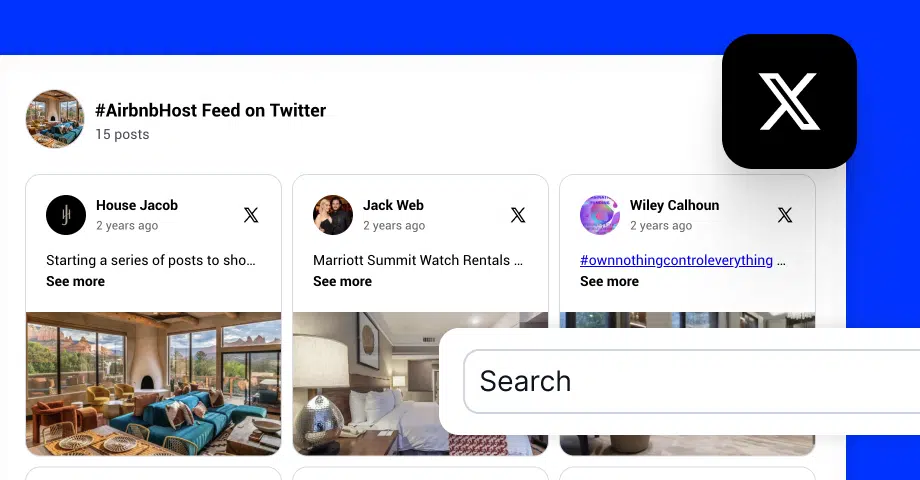

X (formerly Twitter) is still where people react to brands in real time, and most of them never tag your account. X keyword monitoring finds those posts, so you can reply, spot trends, and reuse the best ones as UGC.
I’ll show you how to track mentions, hashtags, and keywords on X with our X social listening tool, and how to get more from X’s own advanced search.
Why use a listening tool to monitor X (Twitter) mentions and brand conversations
- Discover brand mentions that don’t tag you: many users talk about products without tagging the brand. Keyword monitoring surfaces these posts.
- Spot trends and conversations in real time: track keywords as they pick up and join relevant conversations while they’re active.
- Turn conversations into content: collect the best posts and show them in widgets on your website and campaigns.
- Prevent crises with sentiment analysis: detect negative sentiment early and respond before an issue spreads. Here’s how AI sentiment analysis works.
- Boost engagement by identifying influencers: find the accounts that talk about your brand and niche most.
Steps to set up X (Twitter) keyword search and monitoring
Here’s how to set up X keyword monitoring in EmbedSocial, from sign-up to insights.
Step 1: Sign up and log into EmbedSocial
Create your EmbedSocial account and log in. You can start with a 7-day free trial.
Step 2: Connect X (Twitter) with EmbedSocial
Go to ‘Sources’, click ‘Add new source’, and select X as your platform.

Step 3: Choose what to track on X
Pick the source type that matches what you want to find. Use all three for full brand coverage:
- Mentions: posts that tag your @handle.
- Hashtags: campaign and branded hashtags. More in our guide to tracking X hashtags.
- Keywords: your brand name, product names, misspellings, and competitor names. This is how you catch untagged mentions.
Not sure which keywords to add? Start with our list of social listening keywords.

⚠️ X only allows pulling posts from the last 7 days due to API limitations. Set up your keywords before a campaign or launch starts.
Step 4: Filter tweets and display results in your UGC widget
- Use advanced filters to find the posts that fit your marketing goals.
- Display them in a carousel, wall, or feed layout.
- Customize the design, branding, and moderation rules.
- Add the widget to any page on your website. Here’s how to embed a Twitter feed.
Step 5: Analyze your posts in Insights
Click ‘Social listening’ in the left menu, then ‘Insights’. Read the charts for top hashtags, authors, keywords, content types, and sentiment.

Official tutorial: How to read your Social Insights charts →
Use cases: find mentions, monitor conversations, and get brand insights
Tech brands
Tech companies can use Twitter’s advanced search to track keywords like “MacBook Pro overheating” and collect valuable customer feedback. This insight helps them identify gaps, respond to user frustrations, and shape product improvements.
E-commerce stores
Online stores can filter tweets using search filters like “haul” + brand name to find untagged UGC and authentic customer product reviews. These mentions can be displayed on product pages to drive conversions.
Airlines like Ryanair
Airlines such as Ryanair can monitor Twitter mentions and sentiment using keywords like “Ryanair delay” or “Ryanair review.” This enables fast responses to complaints or praise and helps manage brand reputation in real time.
Affiliate and DTC brands
Brands focused on direct-to-consumer or affiliate marketing can track buying intent keywords such as “buy skincare,” “best protein powder,” or “discount code + brand.” This uncovers active demand and opens up outreach opportunities to Twitter users already expressing purchase intent.
Event organizers
Event marketers can monitor Twitter using event hashtags, specific location-based keywords, or relevant tweets during a time period to discover popular moments, boost reach, and display social highlights on event websites.
Crypto or finance brands
These brands can utilize sentiment analysis tools to monitor Twitter mentions of specific tokens, coins, or platforms. It helps them evaluate investor sentiment and refine messaging in fast-changing environments.
Consumer brands
Well-known consumer brands can turn popular tweets into homepage widgets using EmbedSocial. Highlighting social proof from real users enhances trust and supports active marketing campaigns.
Agencies using social listening
Agencies can combine social listening insights with audience segmentation to find key audience clusters, influencers, and target groups for precision campaigns. Learn how influencer discovery fits in.
How EmbedSocial monitors X (Twitter) for brands
EmbedSocial monitors mentions, hashtags, and keywords on X, then lets you filter, analyze, and display the posts you collect. It’s built for brands, agencies, and e-commerce teams that want to reuse X conversations as social proof.
X monitoring features:
- Hashtag tracking: collect every post with your campaign or branded hashtags.
- Keyword tracking: find public conversations about your products, campaigns, or industry, tagged or not.
- Mention tracking: collect posts that tag your @handle.
- Central post library: store and manage every collected post in one dashboard.
- Tags and categories: sort posts by campaign, topic, or sentiment.
- Top accounts: find the users who mention your brand most often.
- Advanced filters: refine posts by keyword, hashtag, date, or username.
- Website widgets: embed auto-updating feeds, grids, or carousels with one code snippet.
- Content hubs: turn X mentions into a live stream for events, launches, or campaigns.
Other X monitoring tools:
- Hootsuite: social media management with basic keyword monitoring.
- Brandwatch: enterprise listening with deep sentiment and audience analysis.
- Sprout Social: keyword tracking, alerts, and reporting inside a full social suite.
- Audiense Connect: X audience discovery and segmentation.
- Mention: lightweight mention alerts across social and the web.
For tools that cover more networks, see our list of social media monitoring tools.
Important notes about X (Twitter) advanced search and monitoring
X’s advanced search is the best free way to search keywords on Twitter. Use these operators in the search bar, or open Advanced search on desktop:
| Operator | What it finds | Example |
|---|---|---|
| “exact phrase” | Posts with that exact phrase | “embedsocial widget” |
| @username | Posts that mention an account | @embedsocial |
| from:username | Posts by an account | from:embedsocial |
| to:username | Replies to an account | to:embedsocial |
| -word | Excludes a word | embedsocial -hiring |
| since: / until: | Posts in a date range | since:2026-09-01 until:2026-09-30 |
| min_faves: | Posts with at least X likes | embedsocial min_faves:20 |
| lang: | Posts in one language | embedsocial lang:en |
Keep these limits in mind:
- Keep keywords current: review and update your keyword list as products and campaigns change.
- Monitor continuously: posts older than 7 days can’t be pulled through the X API, so start tracking before you need the data.
- Automate alerts: a listening tool like EmbedSocial filters posts and notifies you of new brand mentions, so you don’t repeat searches by hand.
Conclusion: Start monitoring X keywords before the 7-day window closes
X conversations move fast, and the API only reaches back 7 days. Native advanced search works for one-off checks, but daily brand monitoring needs mentions, hashtags, and keywords tracked in one place.
Set up your keyword feed once, then reply, analyze, and reuse the best posts. Use the same setup for Threads monitoring.
Start your 7-day free trial or book a demo and we’ll set up your X keyword monitoring with you.