You can now connect your EmbedSocial account directly to AI assistants like Claude using MCP (Model Context Protocol). Just name a social account, widget, or source, and Claude can pull your content, analytics, or media directly. No exporting, no copy-pasting. 🤖
Using ChatGPT instead? The same MCP server works there too, see Connect EmbedSocial to ChatGPT with MCP.
Connecting Instagram? The Instagram MCP server page lists the five tools and the prompts that run on your Instagram feeds, hashtags and mentions.
What is MCP?
MCP is an open standard that lets AI assistants securely connect to external tools and data. EmbedSocial provides an MCP server, so once you connect it, Claude can read your EmbedSocial content and analytics on your behalf, using your existing account and permissions.
Think of it as a secure bridge: your AI assistant can access the same content and metrics you can see in EmbedSocial, without you having to export, paste, or switch between tools.
What you can do once it's connected
Give Claude the name of a connected social account and it can pull that account's posts, UGC, and reviews. For engagement analytics (post, icon, lightbox, and CTA clicks), name the widget instead. Your media library works differently still: name the source it should come from. With it connected, Claude can:
- Pull the social posts, UGC, and reviews from a social account you name
- Filter that content by date range or by keyword
- Look up an individual post or review from that account
- Read a widget's engagement analytics, post, icon, lightbox, and CTA click activity over a chosen period
- Summarize, theme, and turn that content into reports, recaps, and drafts right inside the chat
- Retrieve your media by naming the source it came from
Claude only reads what's already in your account. It works through your EmbedSocial API key, so it can access the same data you can, and nothing more.
How to connect your EmbedSocial custom connector
Integrate EmbedSocial as a custom connector to analyze your social media data directly. These steps cover setup, connection, and activation.
Step 1: Initiate Custom Connector Setup
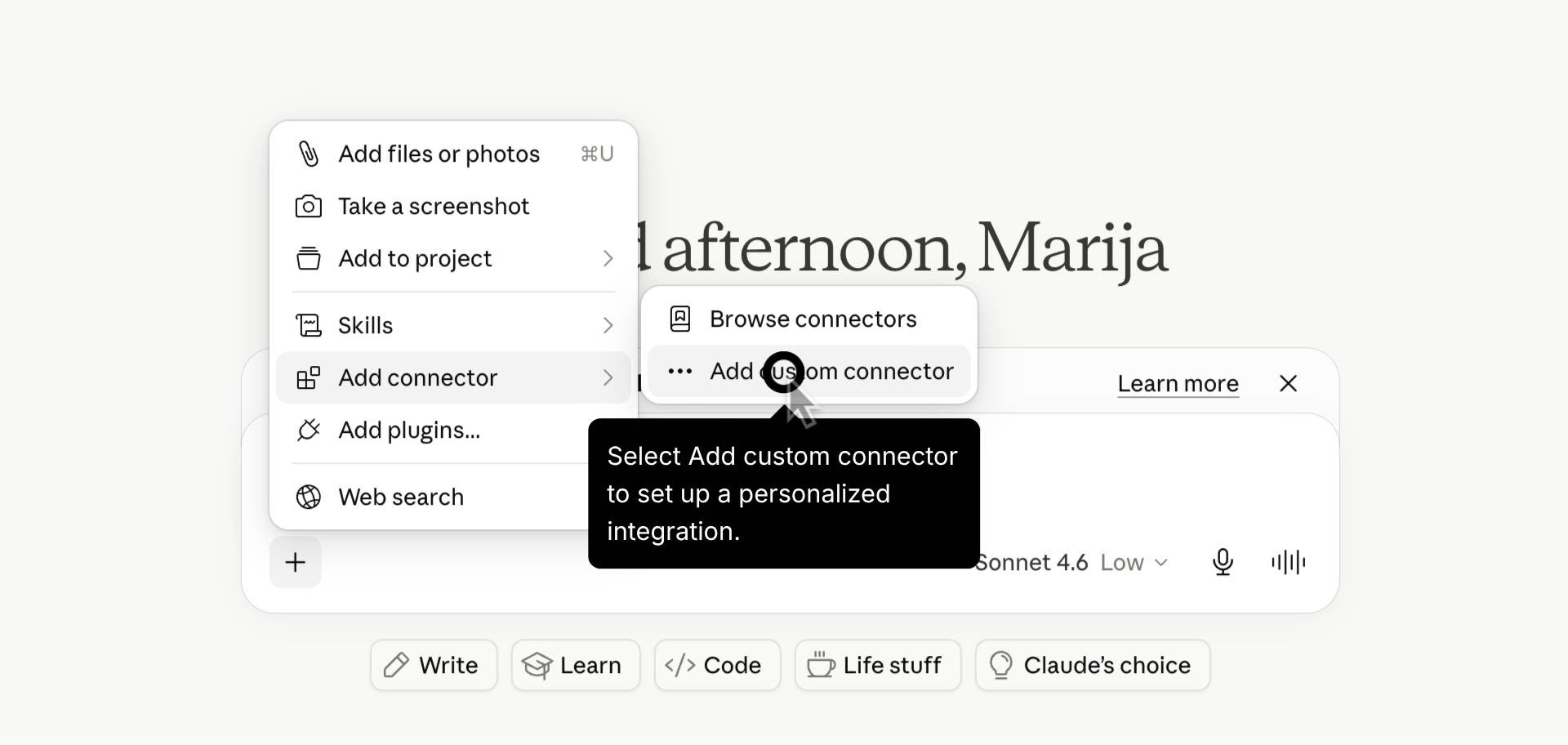
Launch the Claude app or open claude.ai. Click the plus (+) icon in the chat interface and navigate to Add connector. From there, select the Add custom connector option to begin.
Step 2: Configure Connector Details
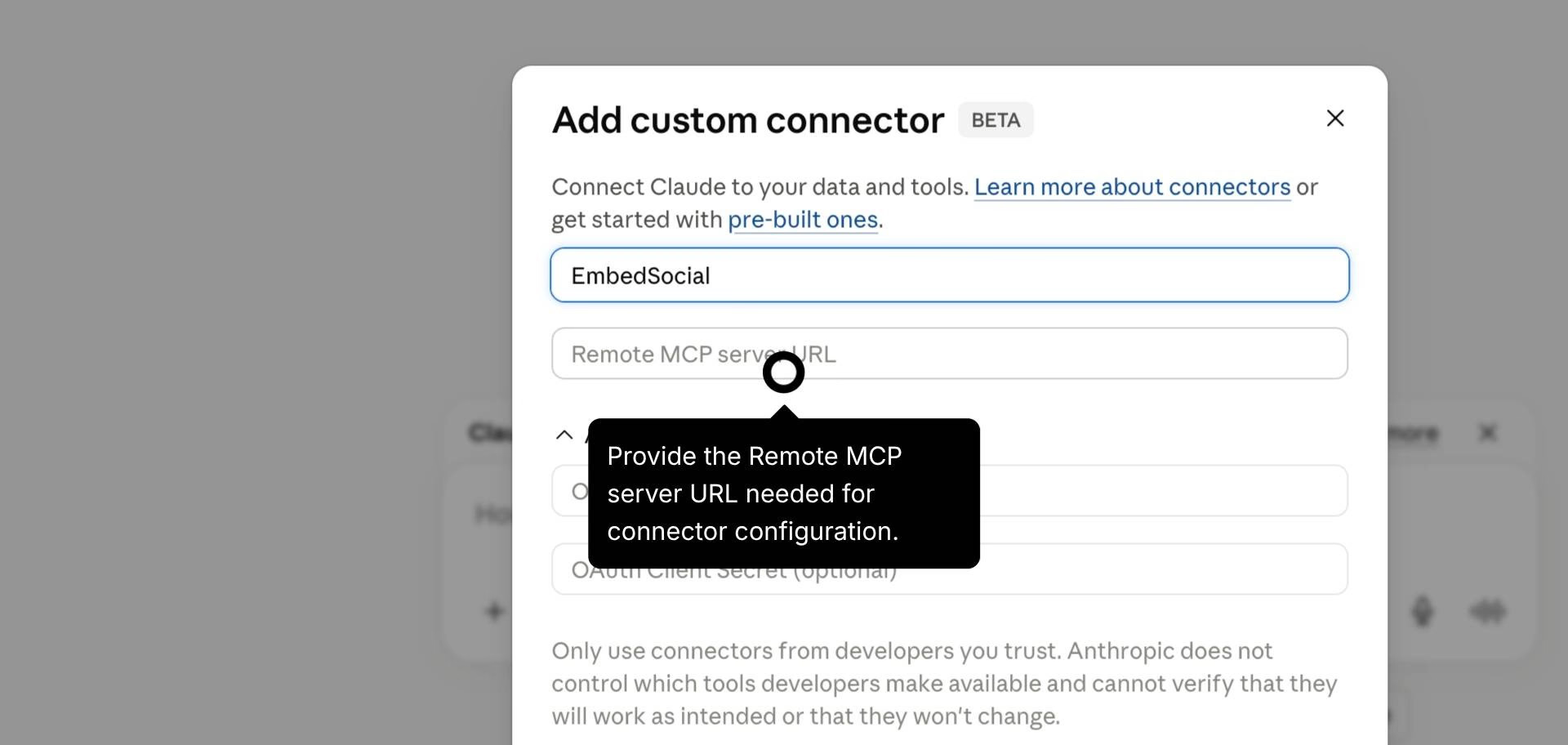
Enter "EmbedSocial" in the name field and provide our specific Remote MCP server URL required for your configuration: https://embedsocial.com/admin/mcp. Then, click Add in the bottom right button.
Step 3: Access Connector Settings
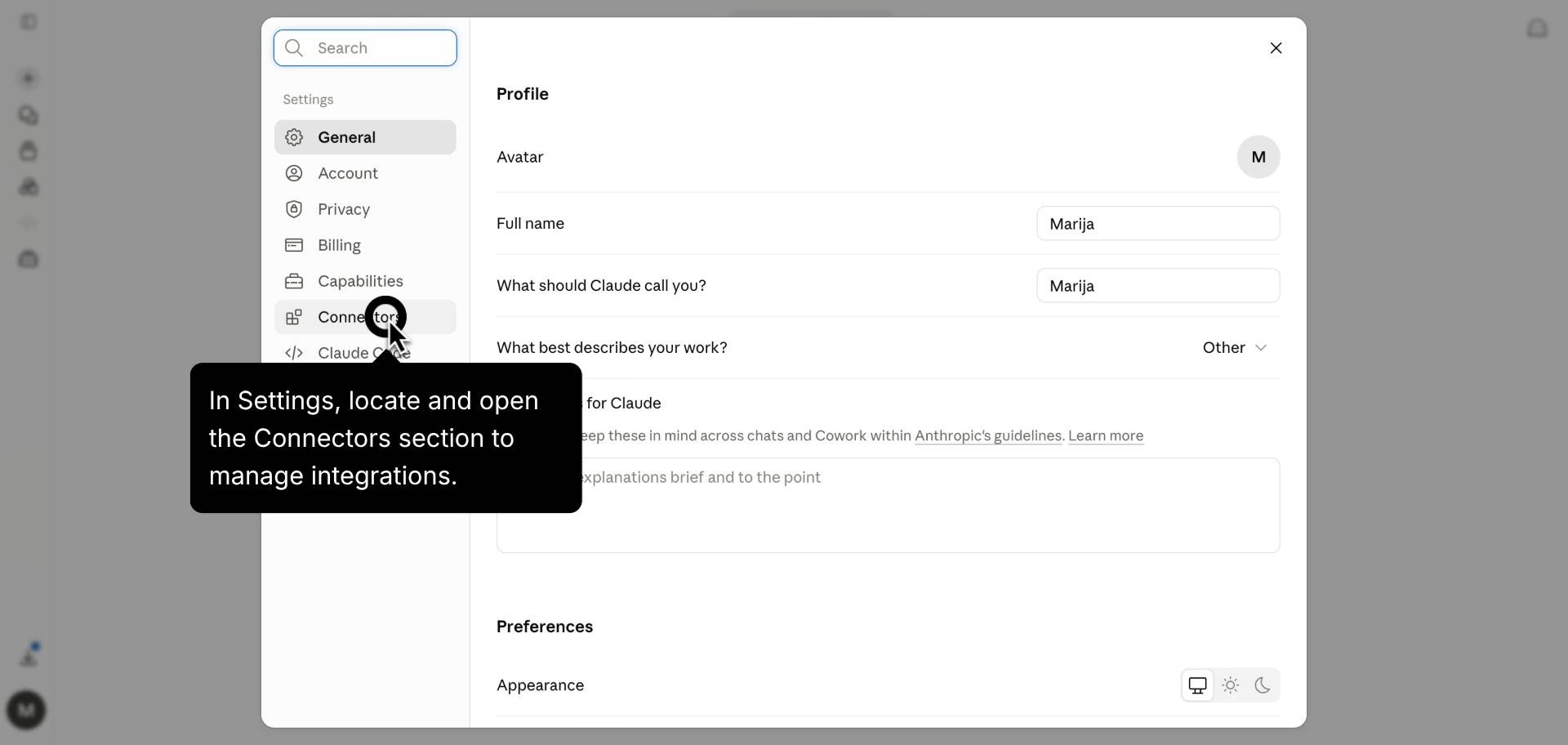
Open your account Settings by clicking your profile icon. Locate and select the Connectors section to manage your integrations.
Step 4: Finalize the Connection
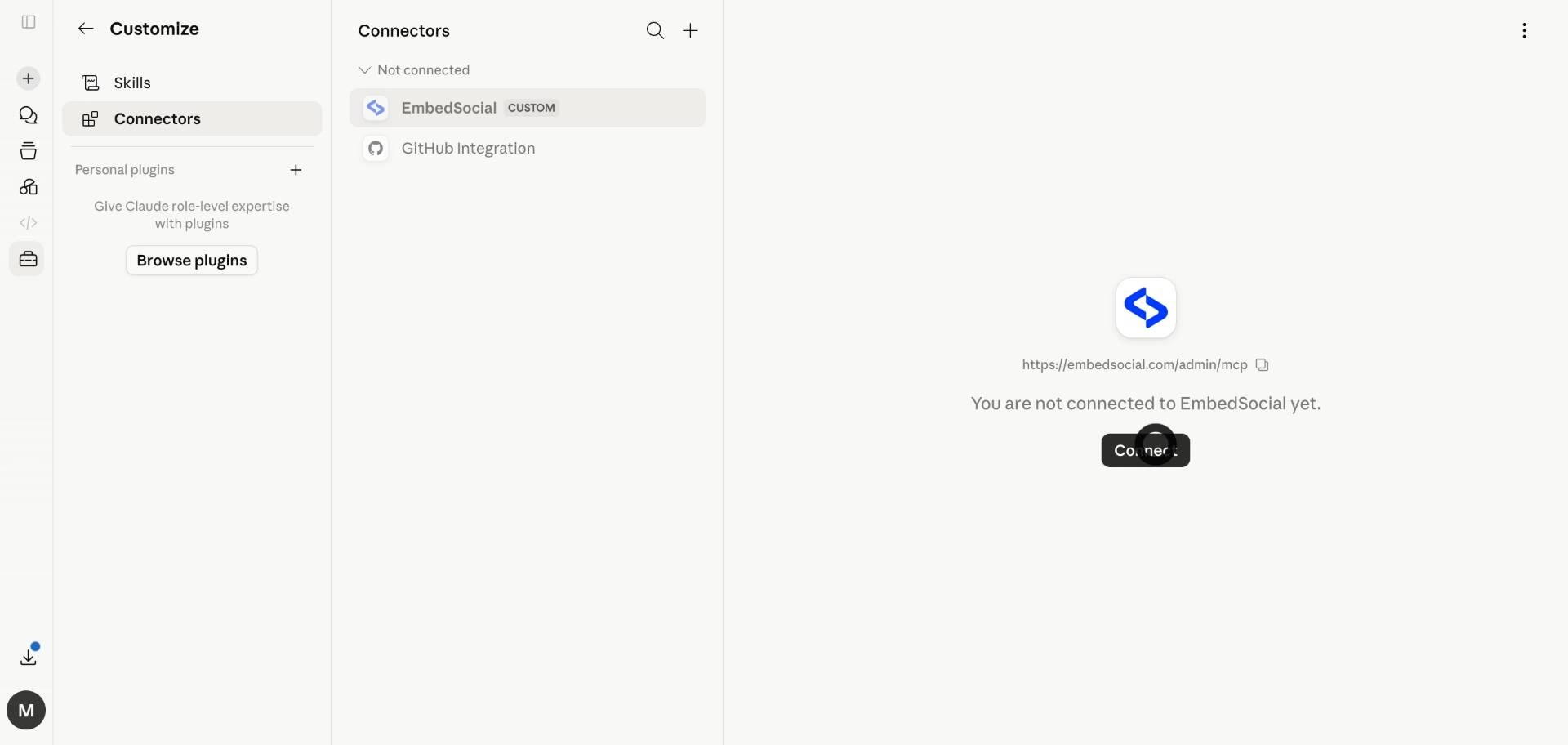
Find EmbedSocial under the not connected list. Click the Connect button to authorize the integration and enable tool permissions.
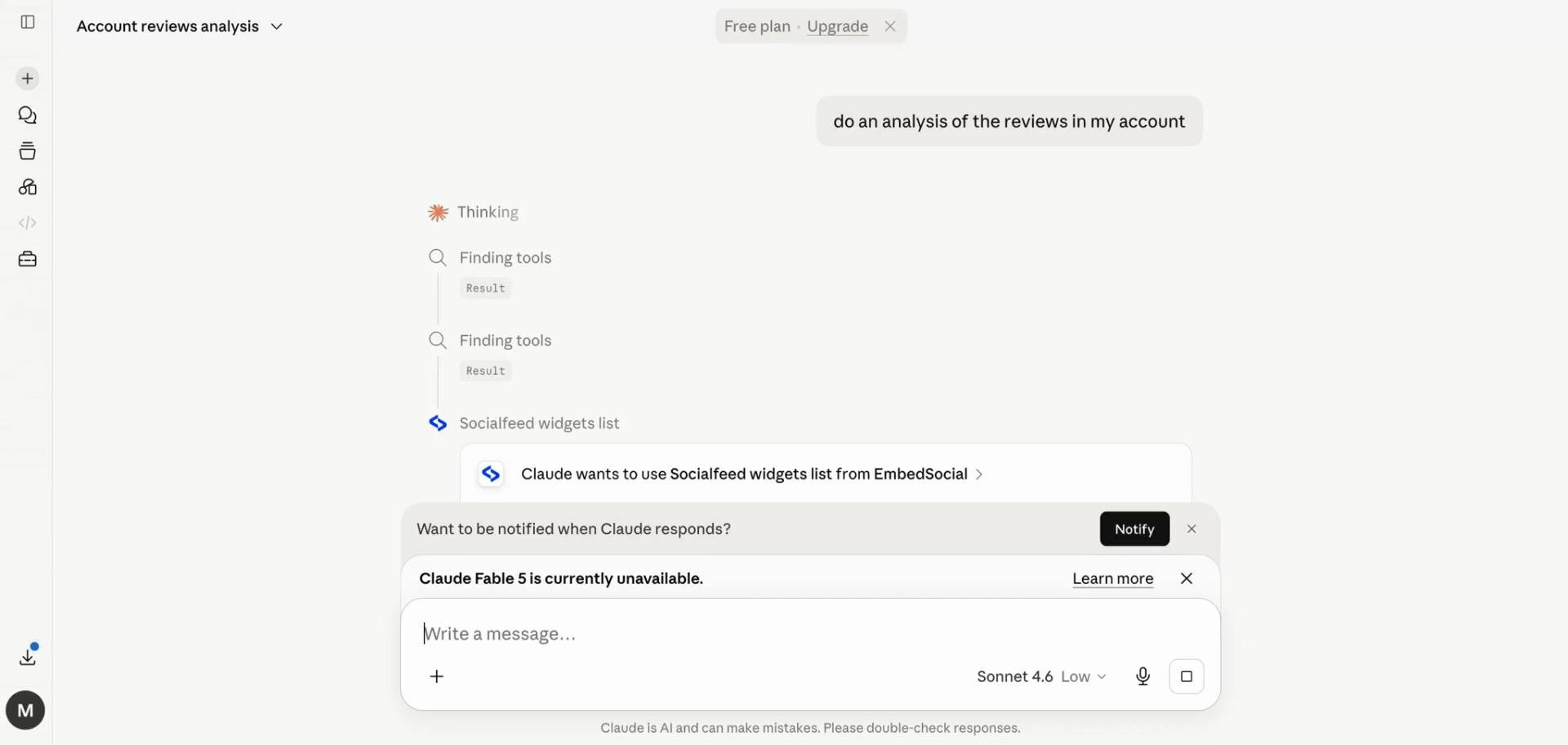
Step 5: Analyze Your Data
Once connected, use the chat to request data analysis. Claude will now access your EmbedSocial tools to process your social reviews.
Use cases & example prompts
Name a social account for content, a widget for analytics, or a source for media, then ask Claude to work with it. Swap in your own names in the examples below:
Summarize an account's content
- "Pull the reviews from my 'Google Business Profile' account and summarize what customers praise and complain about."
- "Show me the latest posts from my 'Instagram' account and group them into themes."
- "Find the content in my 'Trustpilot' account that mentions 'delivery'."
Track a widget's performance
- "How many CTA clicks did my 'Homepage Reviews' widget get in the last 30 days?"
- "Show me the post, lightbox, and CTA clicks for my 'Summer Campaign' widget over the last 90 days."
- "Which interaction is highest on my 'Instagram Feed' widget in the last 7 days: posts, icon, lightbox, or CTA?"
- "Draft a short performance recap for my 'Testimonials' widget based on its last-30-day analytics."
Repurpose and report
- "Pull the data from my 'Trustpilot' account and draft a short recap I can share with my manager."
- "Write three social captions based on the best reviews in my 'Google Business Profile' account."
- "Summarize this month's feedback from my 'Yelp' account into themes for the product team."
Work with your media
- "Get my recent media from 'Instagram' so I can pick a few images for next week's post."
- "Show me my most recent uploaded images from 'Google'."
What data can the AI access?
The connection is read access to your own EmbedSocial content. Name a social account for posts, UGC, and reviews; name a widget for engagement analytics; name a source for media. Either way, it uses your account's API key, so Claude sees the same data you do and can't reach anything outside your account.
Related MCP resources
- Browse social media automation workflows
- How to Use the EmbedSocial MCP to Automate UGC, Reviews, and Widgets
- Social Media MCP Servers: A Complete Guide for Marketers (2026)
If you have any questions, click the bottom right chat icon to talk with our customer success team or send us an email at support@embedsocial.com We're here for you 🙏